 shivani singh
- September 4, 2022
Step By Step to install & configure windows admin center on window server 2019 base
Hello,In this blog we are discussing about windows admin center.Here we are installing & configuring windows admin center on window server 2019 base.Window admin center is a platform where we can connect and add the servers & it allows to manage,configure & troubleshoot the servers,windows Server workloads remotely from a web browser and one location.
There are some steps to install & configure windows admin center on server 2019:
Install Windows Admin Center
- Login to Window Server 2019 Base.
- Click on Internet Explorer.

- Go to Browser & search the following link:
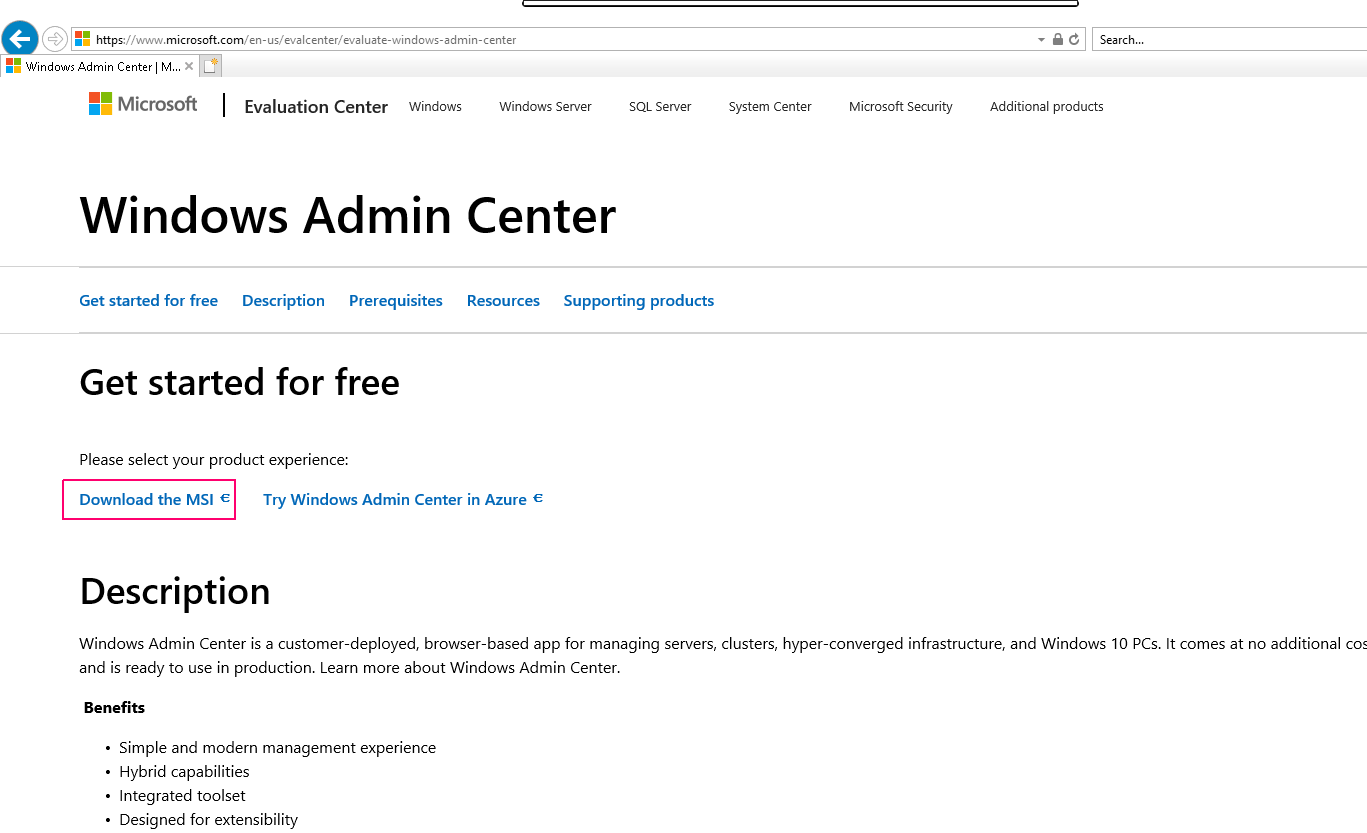
https://www.microsoft.com/en-us/evalcenter/evaluate-windows-admin-center
- Click on Download the MSI.
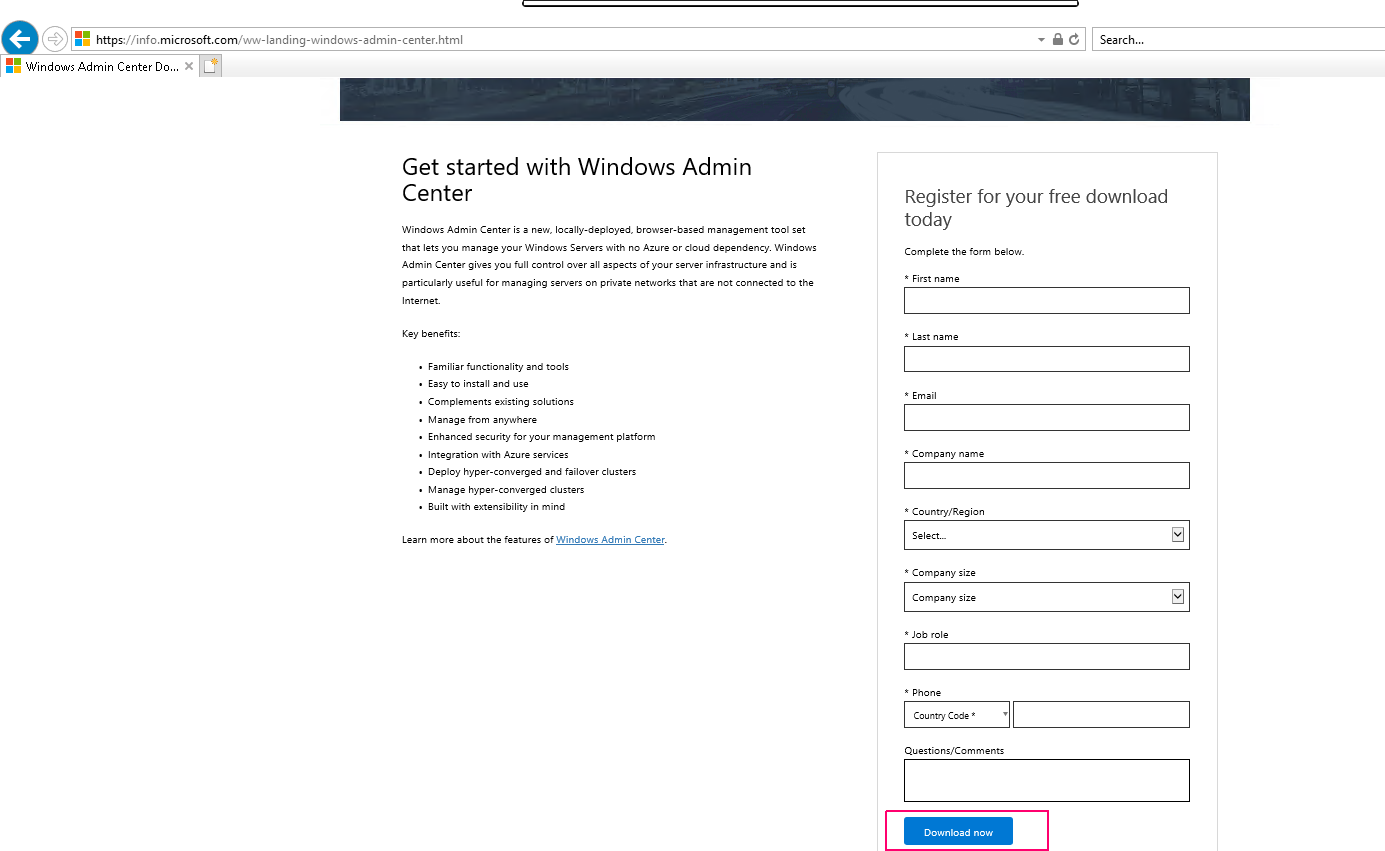
- We need to register for free download window admin center.
- Provide the required details then click on Download now.
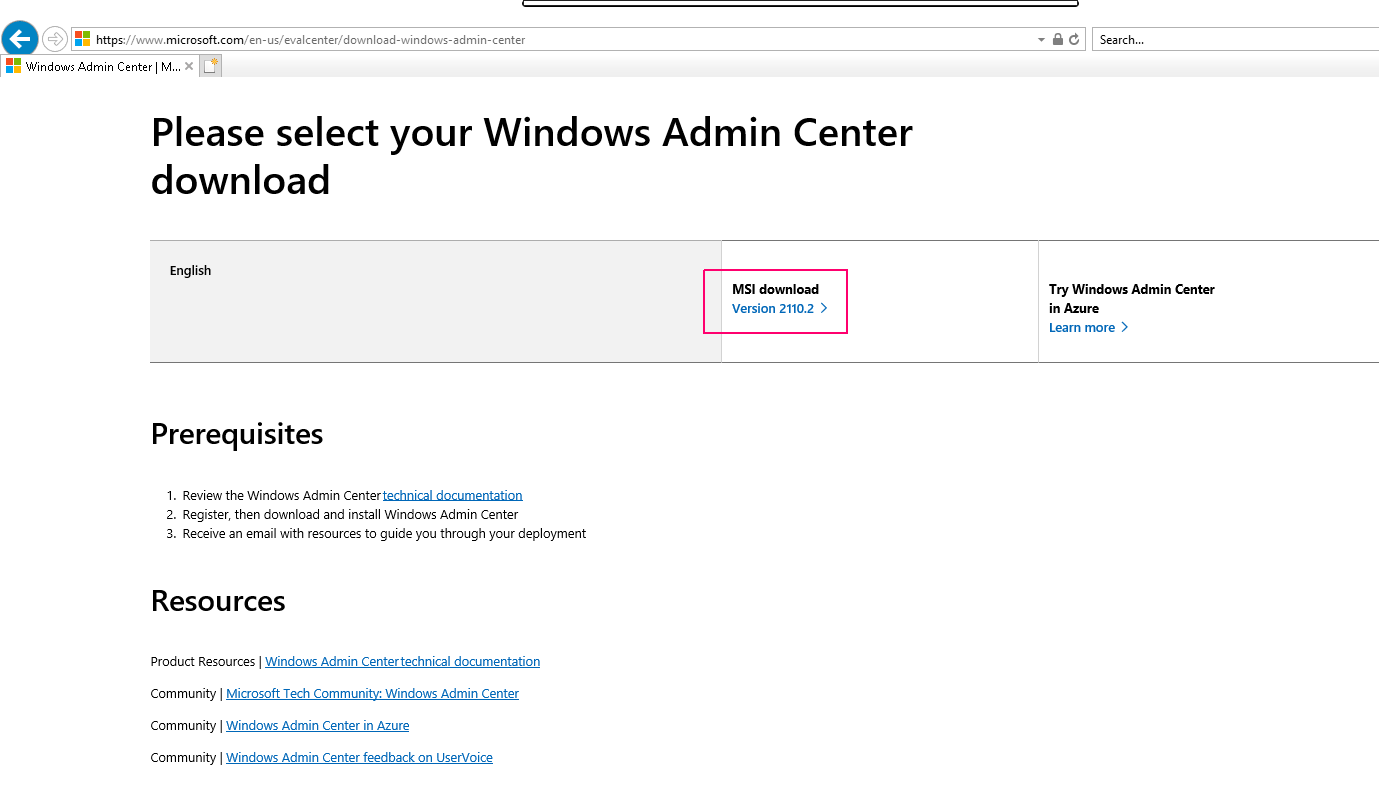
- On MSI download option,Click on version 2110.2
- Click on Save.
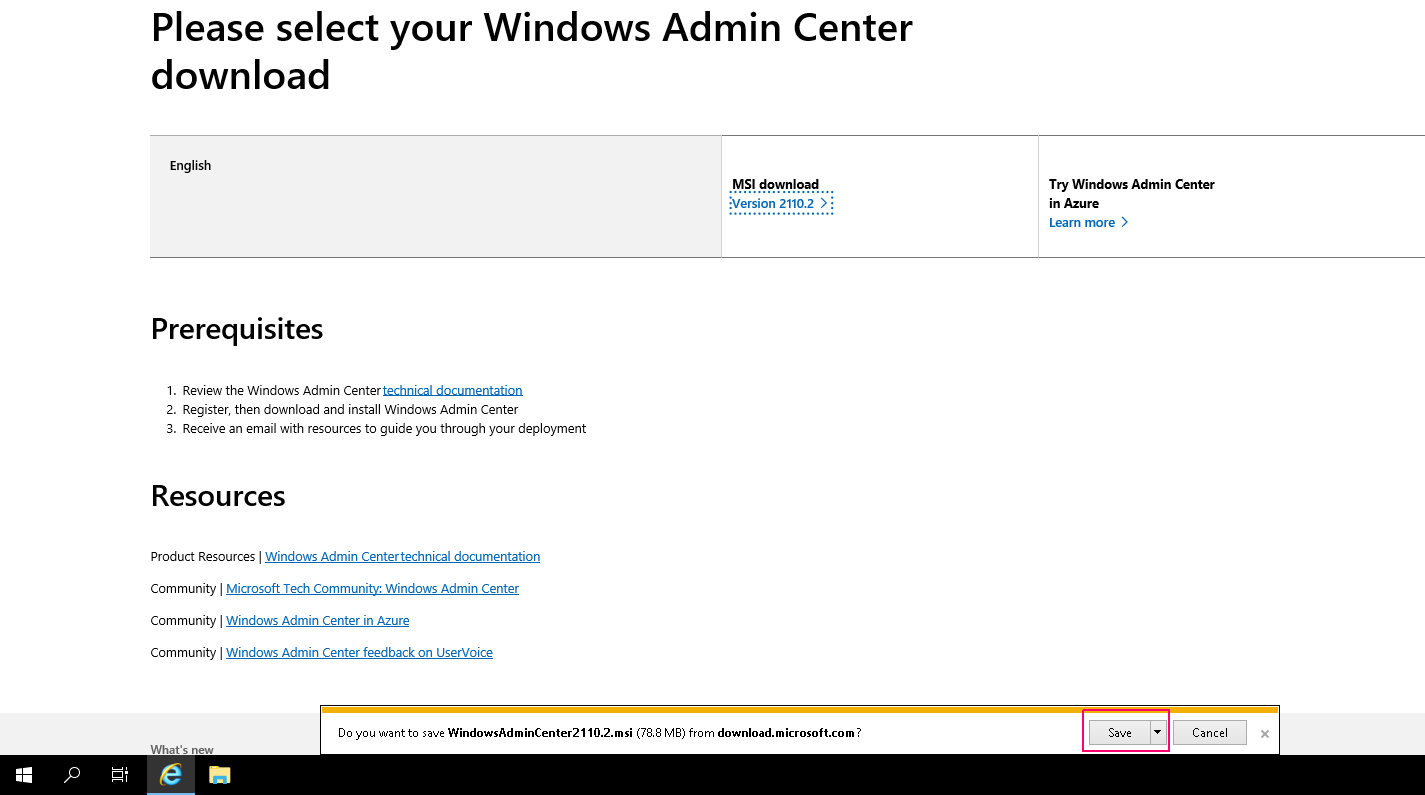
- Click on Run.
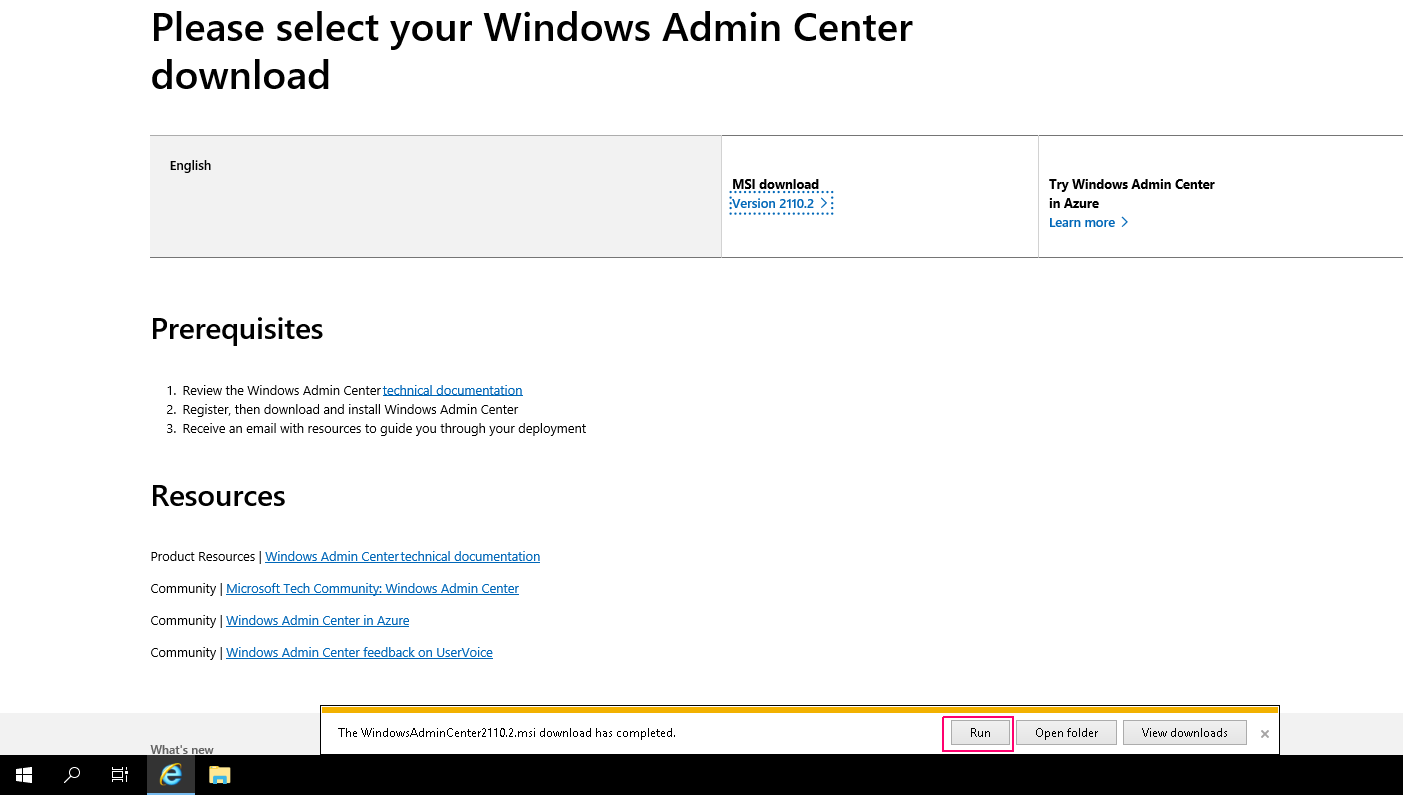
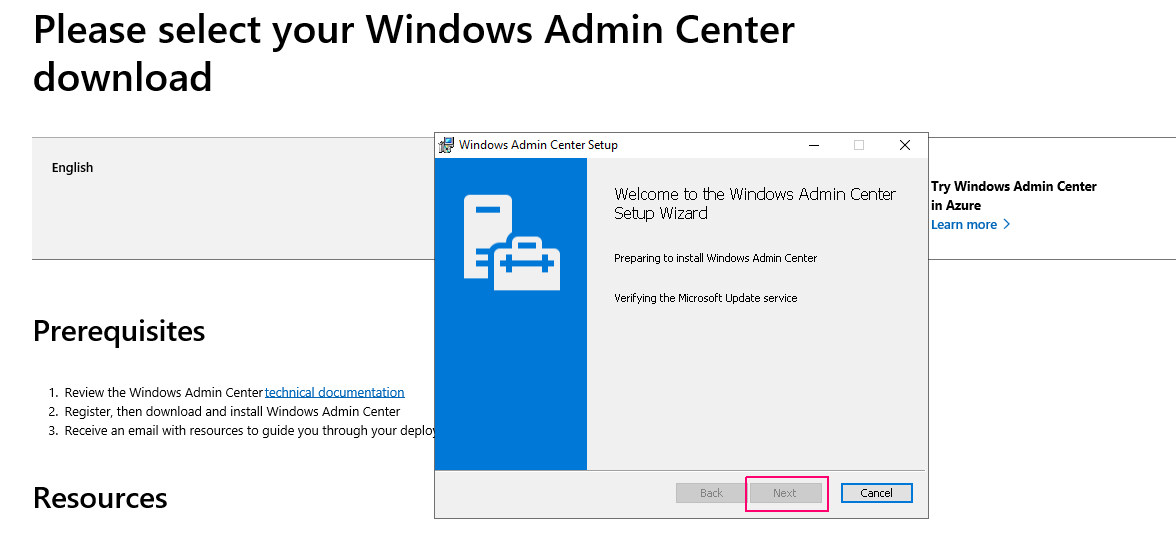
- Welcome Page will open & click on Next.
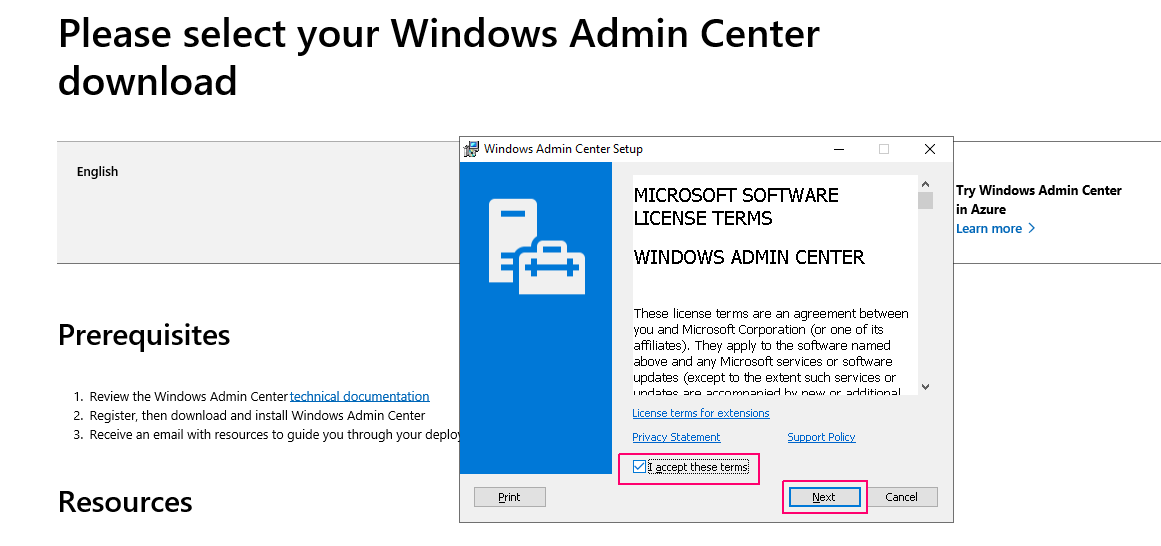
- Accept the terms & conditions “click on I Accept the terms”.
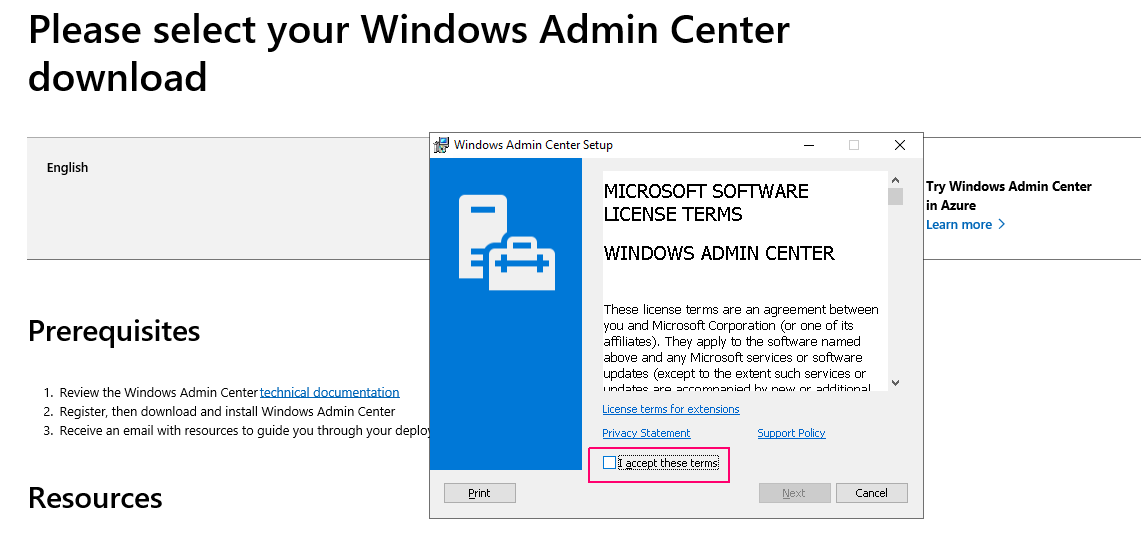
- Click on Next.
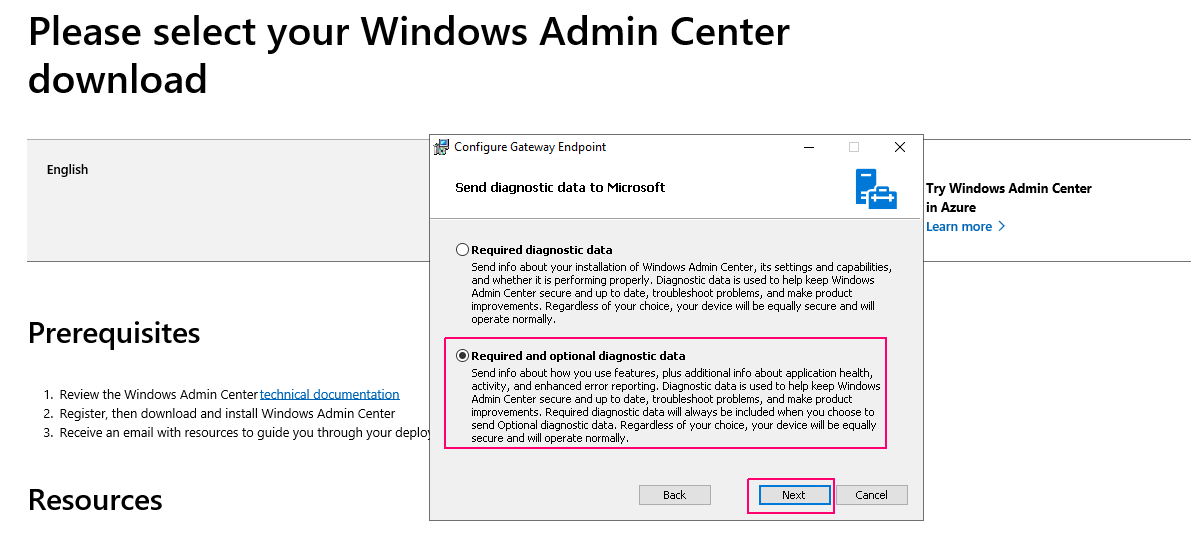
- Select “Required & optional diagnostic data”
- Click on Next.
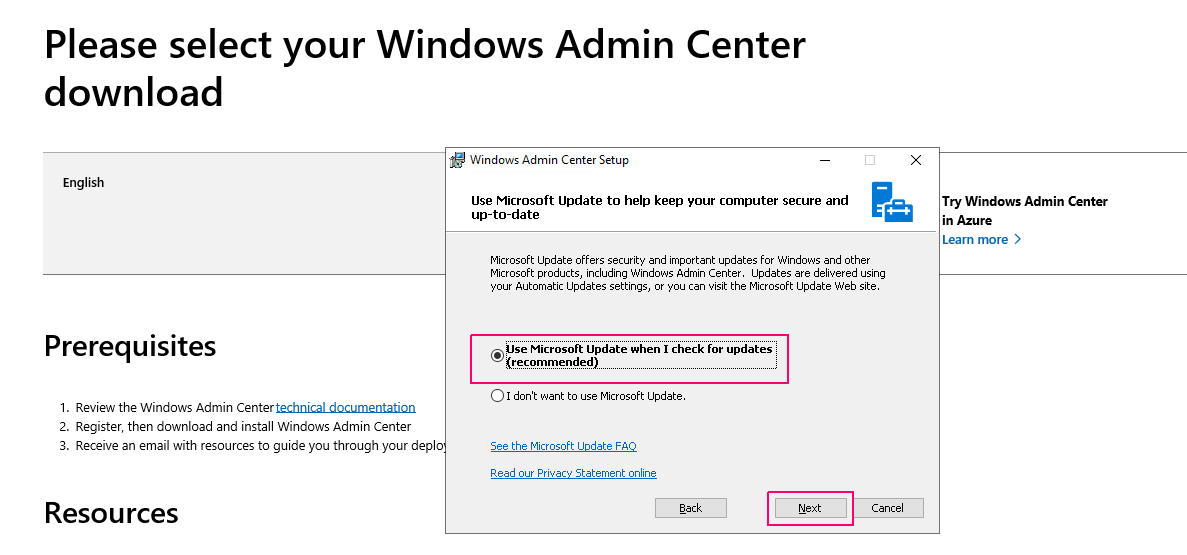
- Select “Use Microsoft Update when I check for updates”,click on Next.
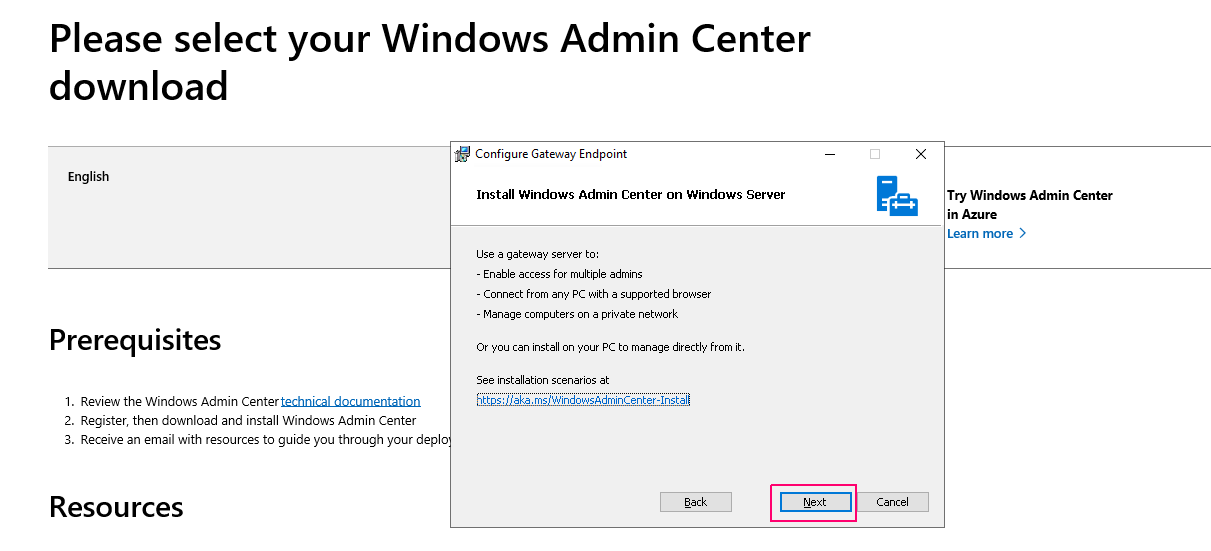
- Click on Next.
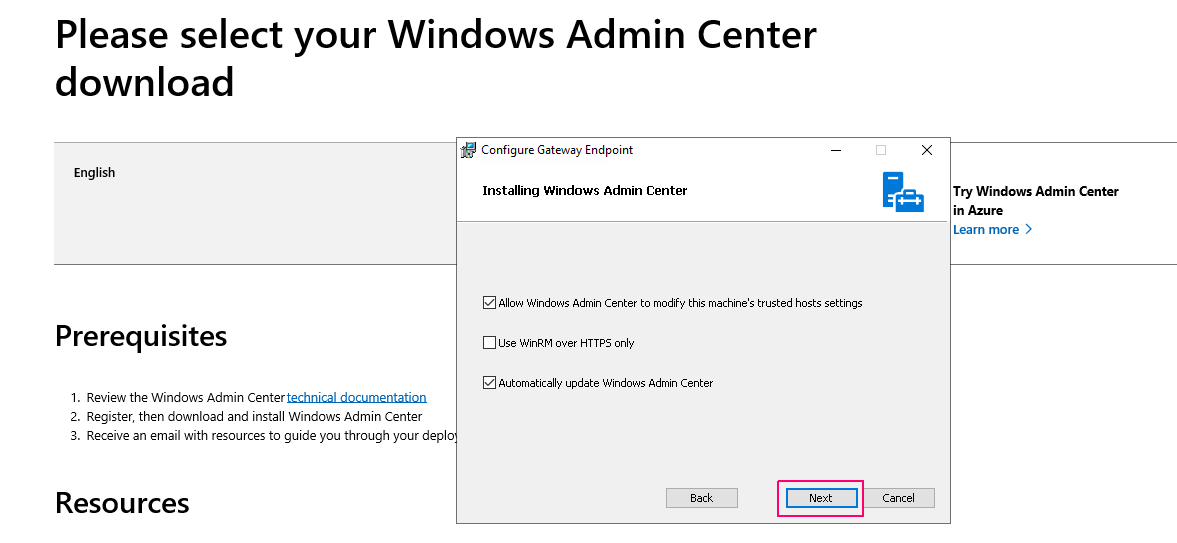
- On configure gateway endpoint,allow window admin center to modify this machine’s trusted hosts settings & automatically updates.
- Click on Next.
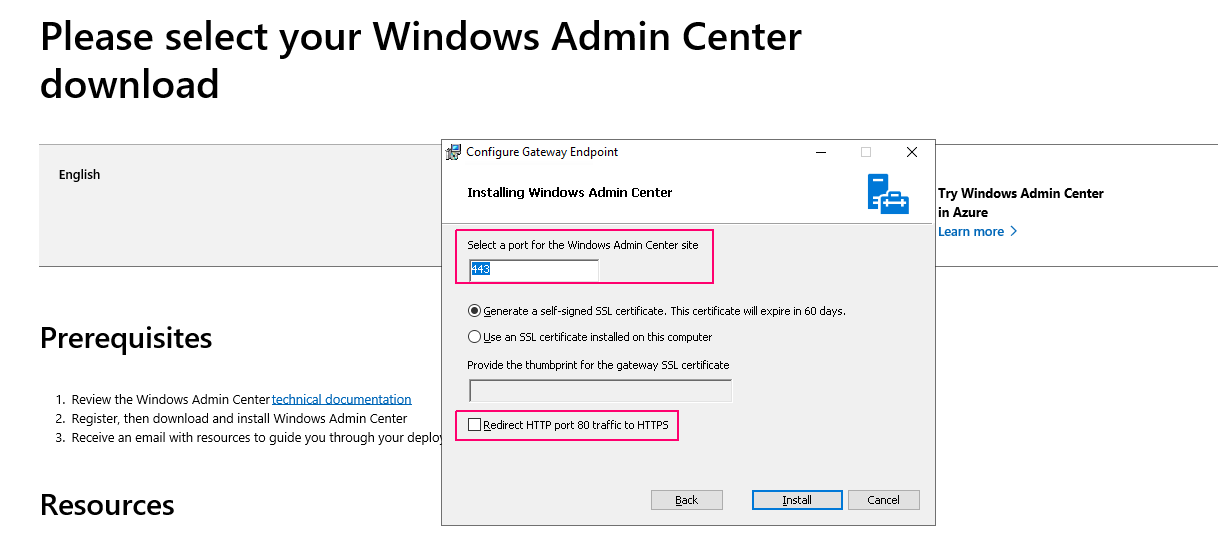
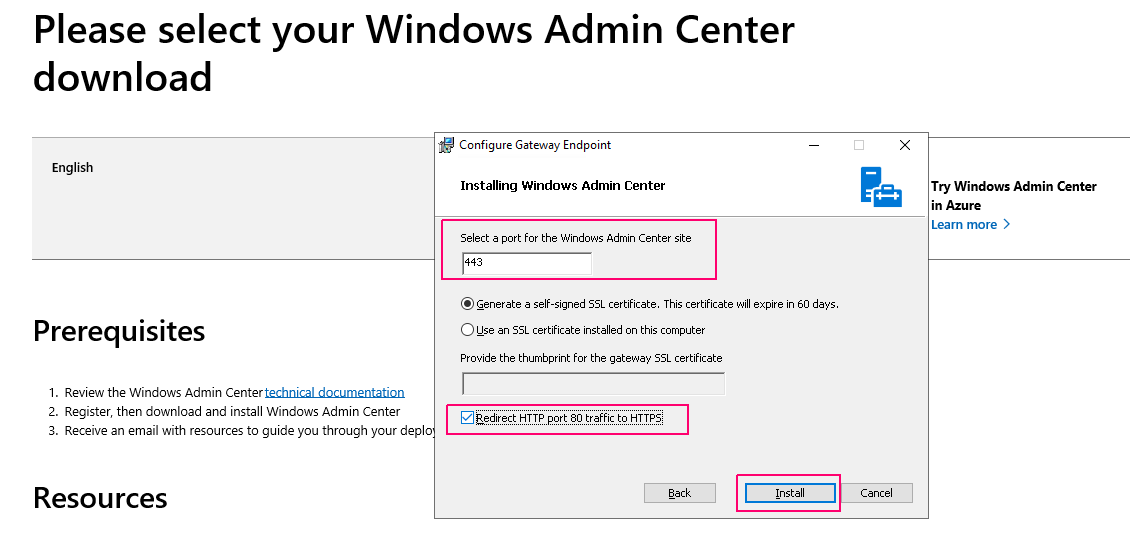
- Provide a Port number for window admin center site,by default is 443.
- Enable the HTTP port 80 to HTTPS.
- Click on Install.
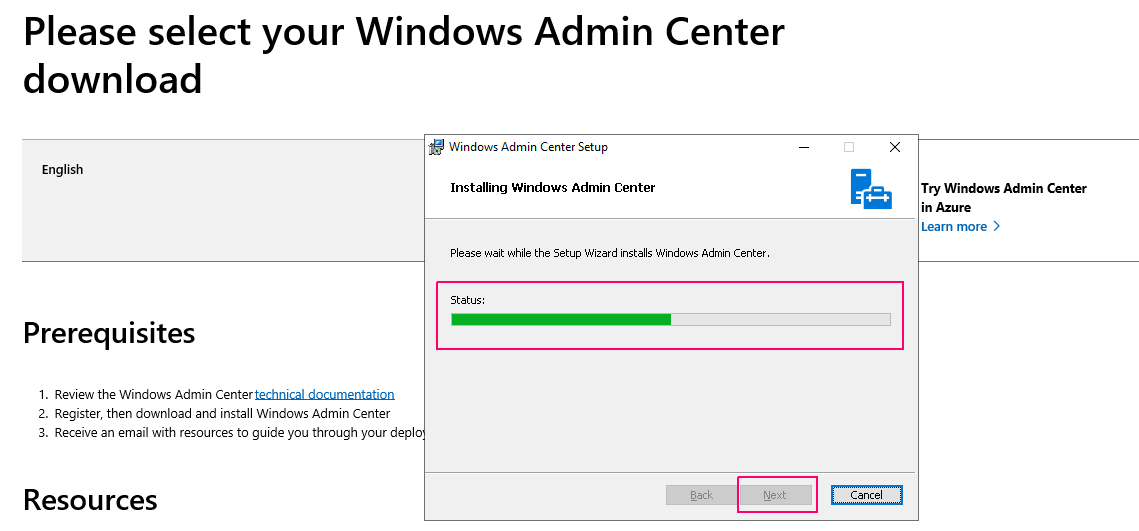
- Now Installing window admin center.
- Once completed,,click on Next.
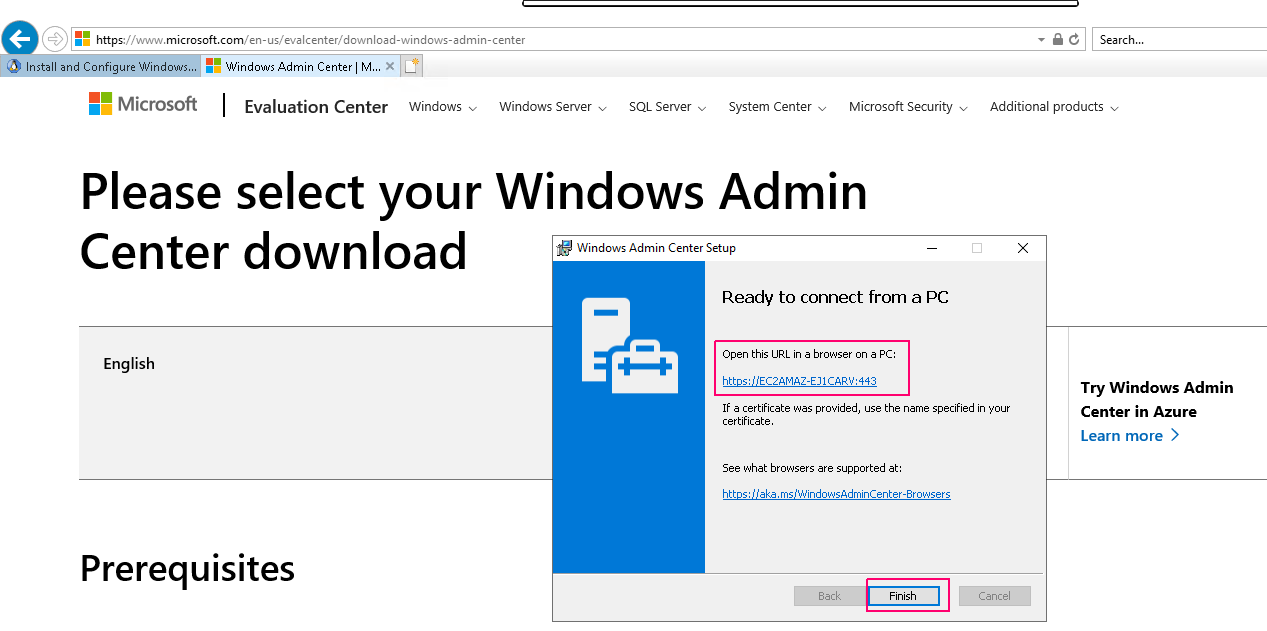
- Click on the URL as mentioned on ready to connect from a PC page.Supported browsers are Microsoft Edge and Google Chrome.
- Then Click on Finish.
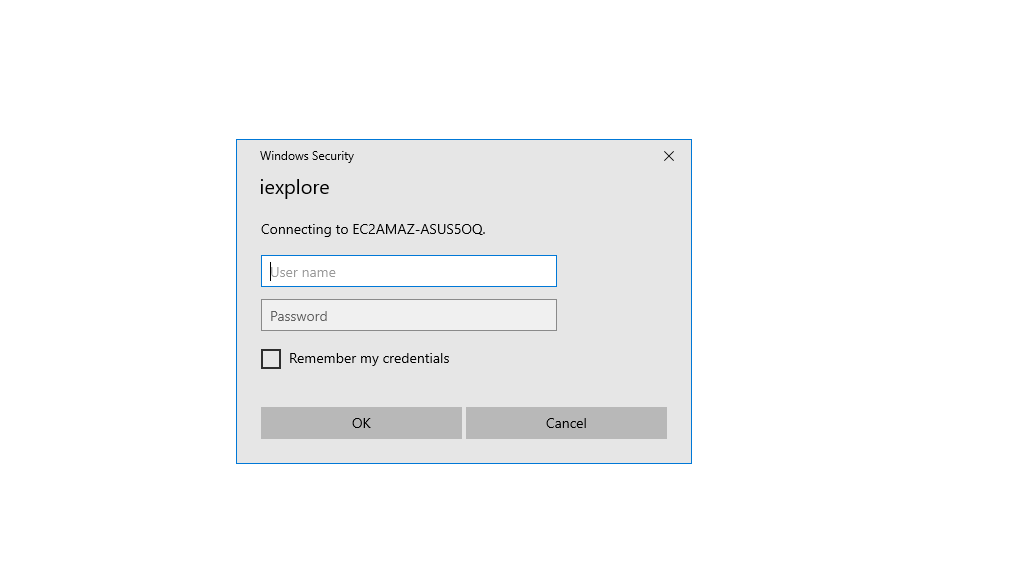
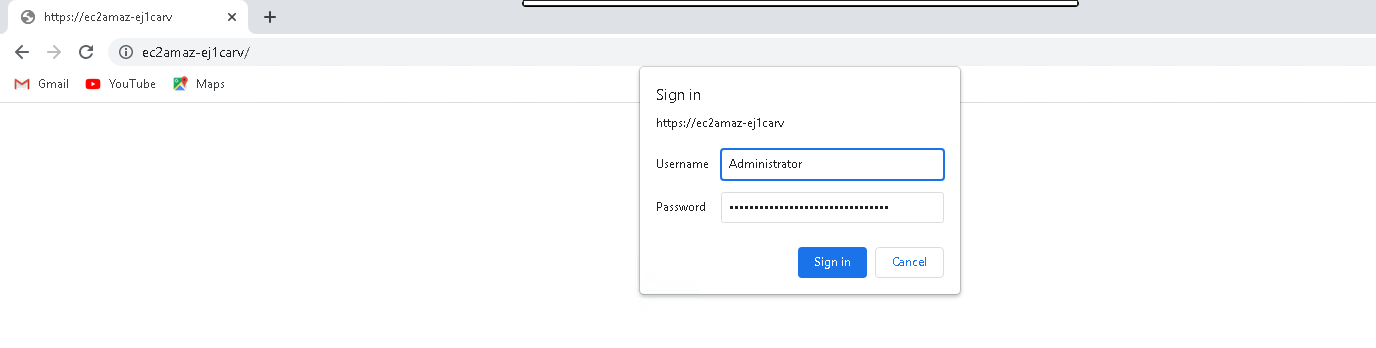
- When the Windows Admin Center login page opens,we need to authenticate.Provide the Username & password.
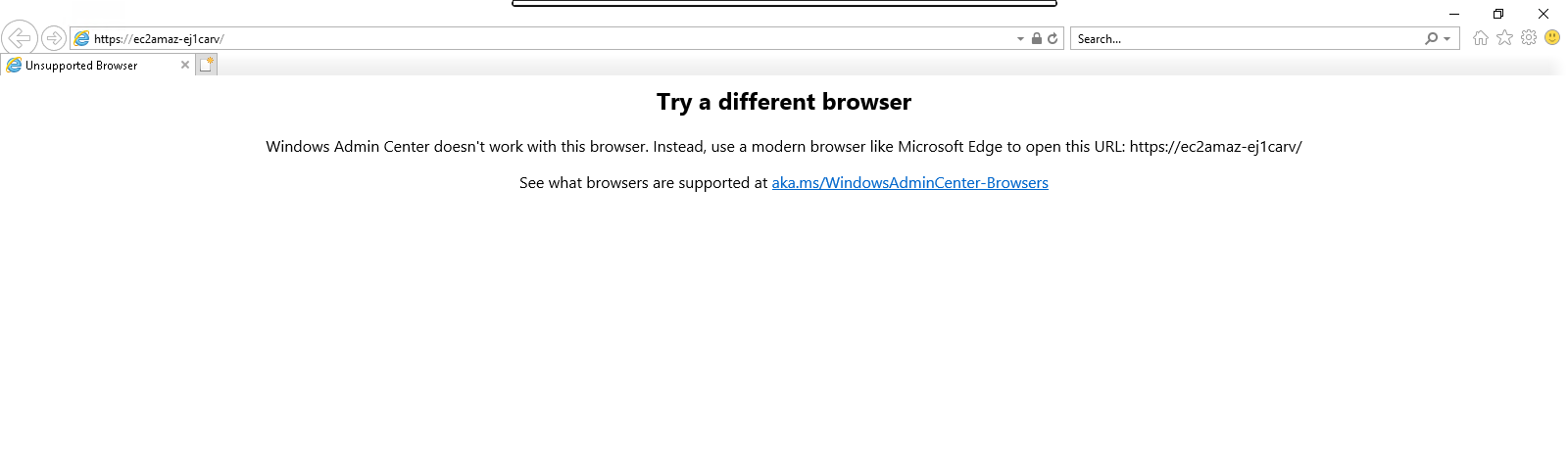
- We are getting an error because Window admin center is not support Internet Explorer.
Configure Windows Admin Center
- Open the window admin center login page in Chrome.
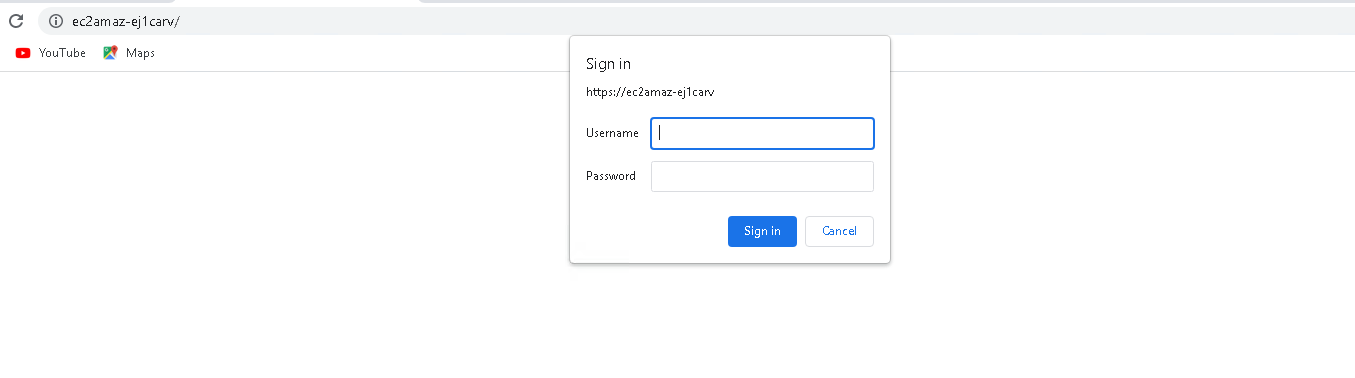
- Provide the Username & Password.
- Click on Sign in.
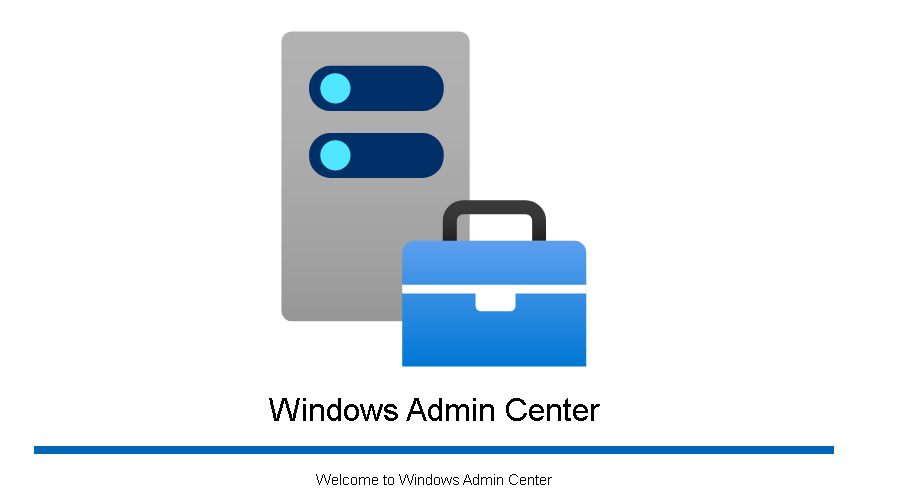
- Welcome to Window Admin Center page will open.
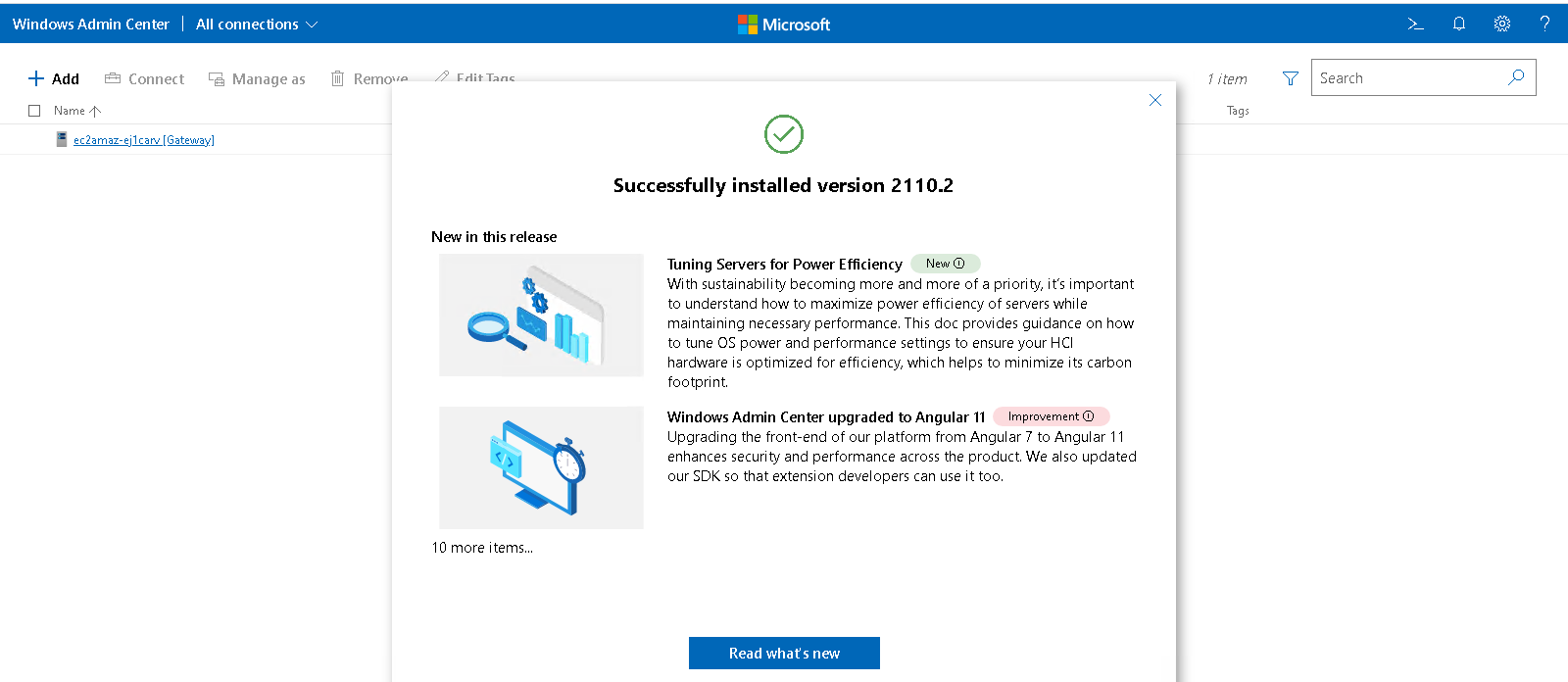
- Close the open wizard.
- Here,we can see All connections on windows admin center..
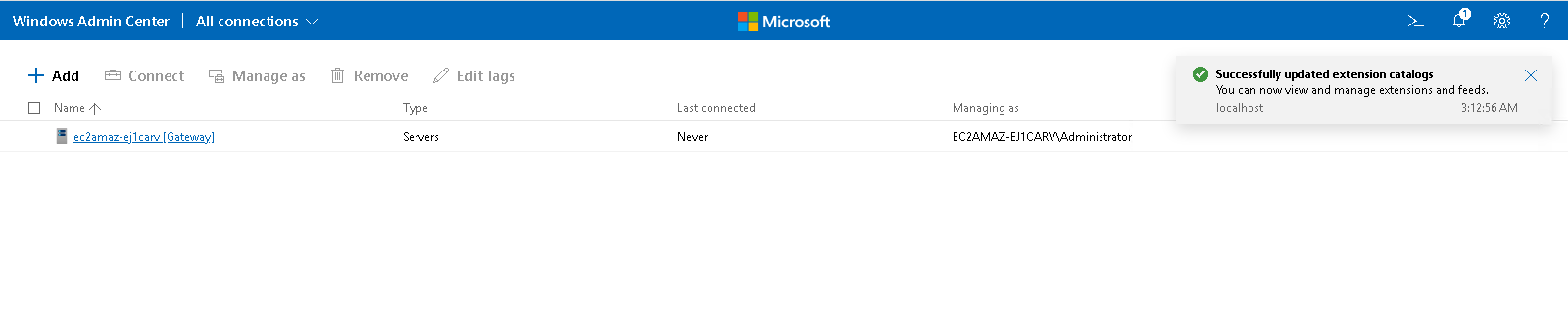
- Click on Server name.
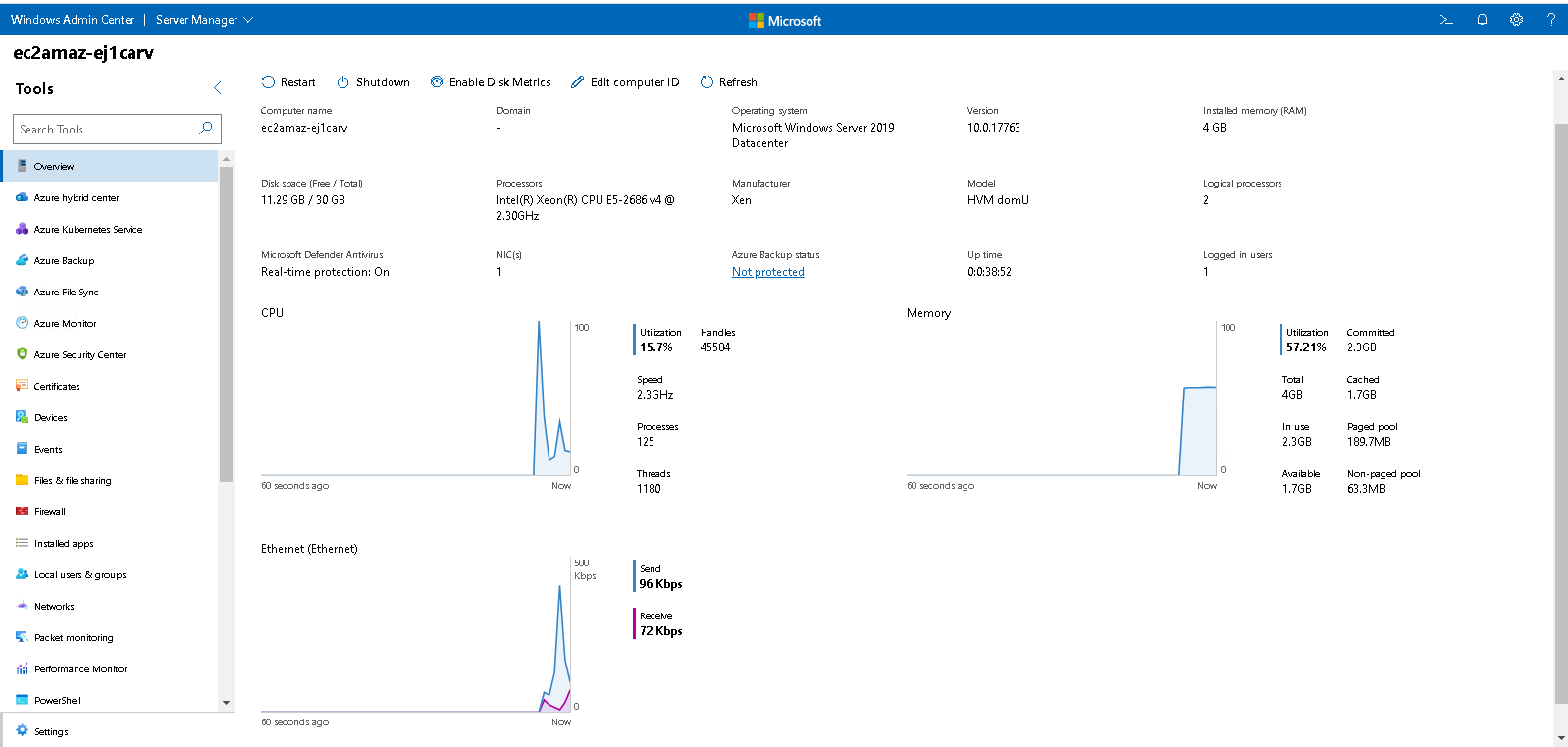
- We can see all the details of Connected Server.
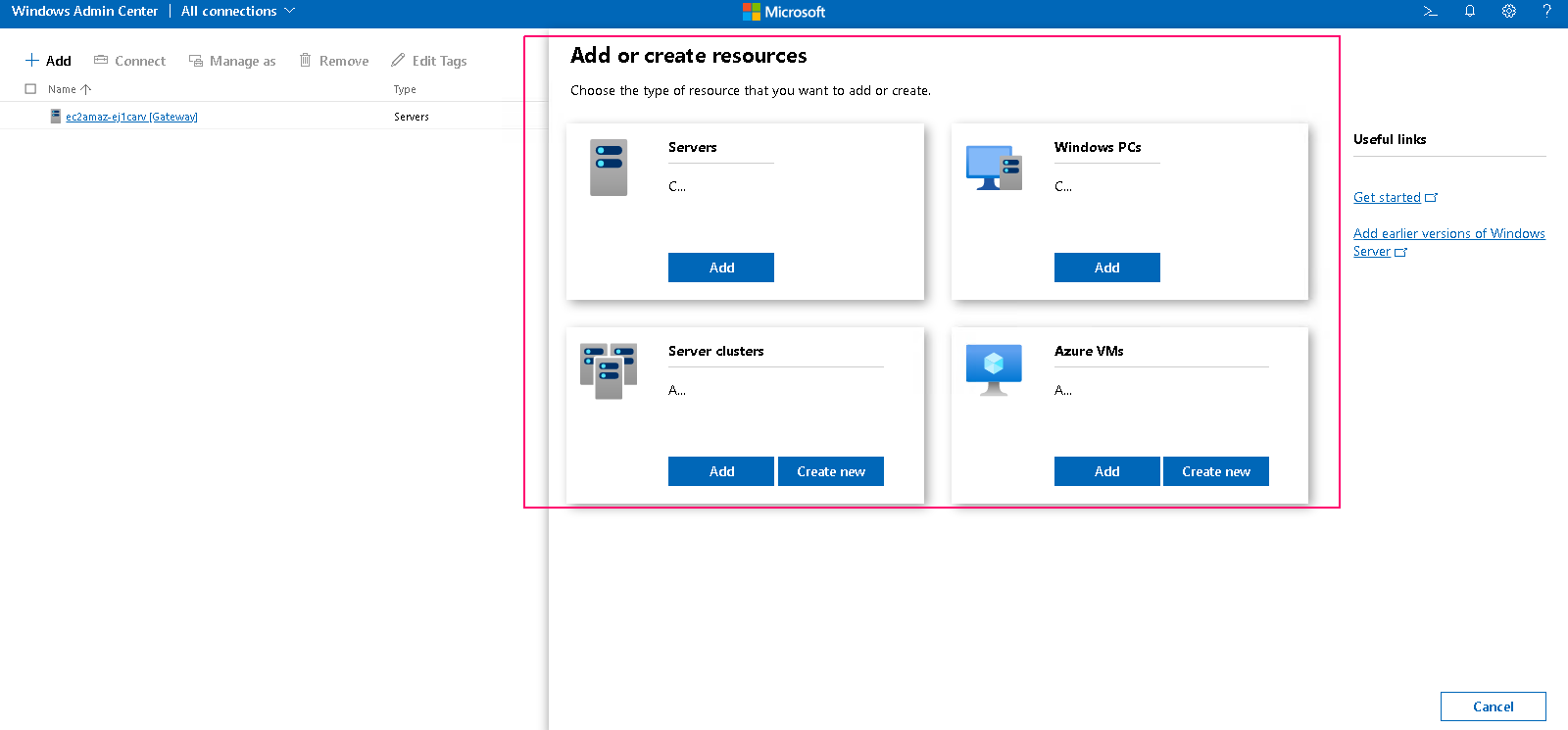
- Add or create resource on window admin center,click on Add.

- If we need to connect servers,windows PCs,Azure VMs & Server clusters.